Set Up with Claude
Claude Code and Claude Desktop both support MCP servers. Once connected, Claude can drive ButterKit directly, so you can manage your entire App Store screenshot workflow from a conversation.
A few things you can do:
- Localize screenshots in one command. Add languages, translate every artboard and App Store metadata field, then export, all in seconds.
- Design and iterate from a prompt. Describe the layout you want, swap copy, adjust 3D devices, and preview renders without switching windows.
- Upload straight to App Store Connect. Push finished screenshots and metadata to your store listing as soon as they’re ready.
- Wire it into your build process. Pair Claude Code + Fastlane with ButterKit to capture new Simulator screenshots, design around them, translate, and publish in a single session.
2 minute video tutorial
Prerequisites
- ButterKit v1.8+
- Claude Code or Desktop app installed
Configuration
Enable ButterKit MCP Server
Open ButterKit Settings > MCP > enable MCP server
Copy the Helper Binary Path
Copy the Helper Binary Path under Configuration
Connect in Claude
If using Claude Code CLI
Run in Terminal:
claude mcp add butterkit /Applications/ButterKit.app/Contents/MacOS/butterkit-mcpIf using Claude Desktop
Ask Claude to help you install a new local MCP server, and include the Helper Binary Path. Example:
Claude, help me install a new local MCP server with binary path /Applications/ButterKit.app/Contents/MacOS/butterkit-mcp Or manually install in Claude settings JSON (advanced)
Or install manually using the Claude Desktop app
- Open Claude Settings > Developer > Local MCP Servers > Edit Config
- Open the claude_desktop_config.json file in a code editor
- Add ButterKit to the MCP section (example below)
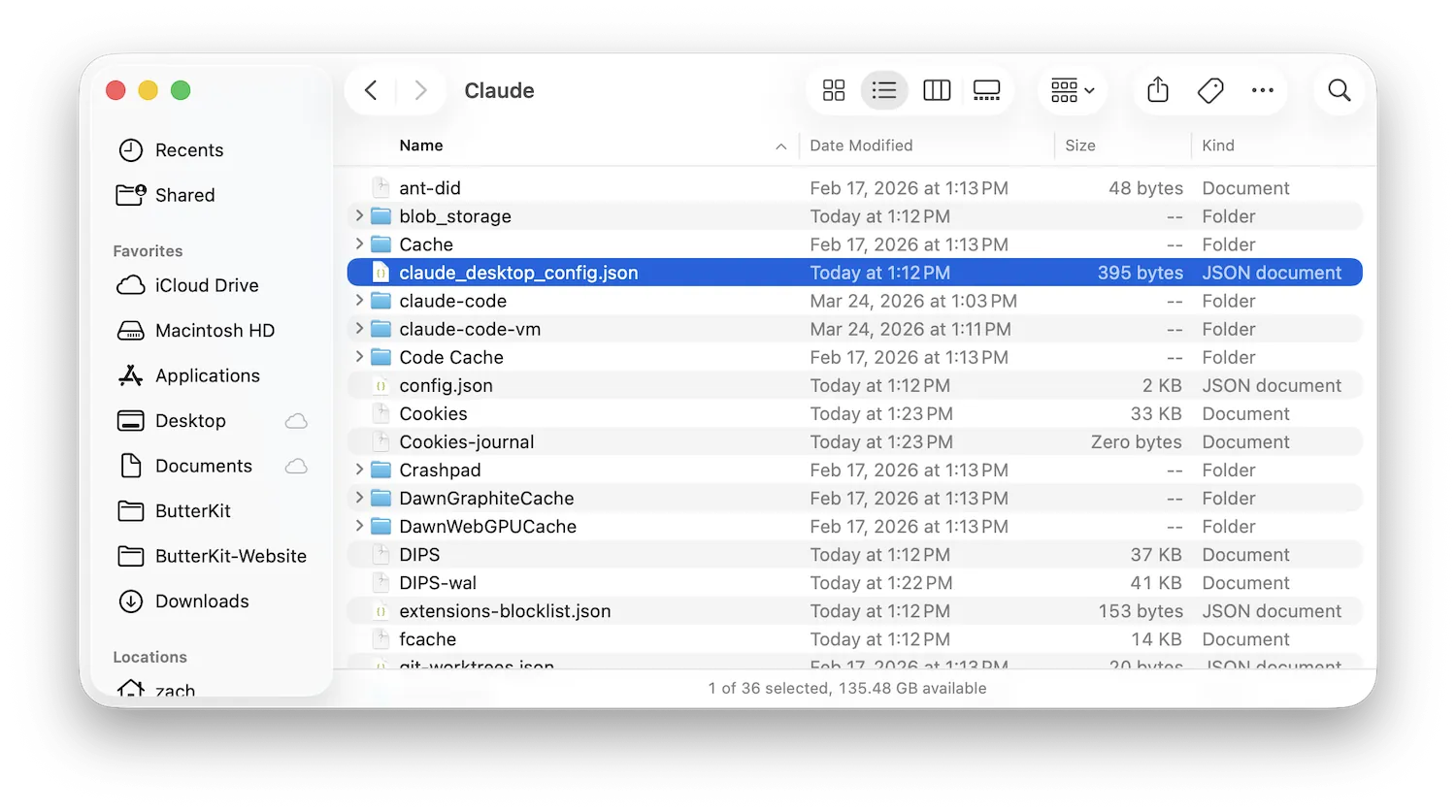
Pressing Edit Config will open Finder and highlight the JSON file to edit
Here’s an example claude_desktop_config.json file:
{
  "mcpServers": {
    "butterkit": {
      "command": "/Applications/ButterKit.app/Contents/MacOS/butterkit-mcp"
    }
  },
  "preferences": {
    "menuBarEnabled": false,
    "quickEntryShortcut": "off",
    "quickEntryDictationShortcut": "off",
    "coworkScheduledTasksEnabled": true,
    "sidebarMode": "chat",
    "coworkWebSearchEnabled": true,
    "ccdScheduledTasksEnabled": true
  }
}
Save it and restart Claude.
Optional: auto-launch ButterKit. If you’d like ButterKit to start automatically when Claude connects, add "--auto-launch" as an argument. For Claude Code CLI: claude mcp add butterkit /Applications/ButterKit.app/Contents/MacOS/butterkit-mcp -- --auto-launch. For the JSON config, add "args": ["--auto-launch"] to the butterkit entry. See Auto-Launch for details.
Verify the connection
Start a new Claude Code session. ButterKit’s 40 tools should be available. You can confirm by asking Claude to list your open documents.
Claude, do you see ButterKit MCP tools?Start using it
Ask Claude to work with your ButterKit project. For example:
- “Add French and German App Store screenshot localizations”
- “Upload all screenshots and metadata to App Store Connect”
- “Change the design: make the text bolder”
Tips
- Claude Code works well for end-to-end workflows: designing screenshots, translating, and uploading in a single session.
- Pair ButterKit MCP with file system access to automate screenshot pipelines alongside your build process.
- For step-by-step recipes, see Workflows.
Quick Help
- Need more help? Browse the Documentation
- Check out our Templates & Add-ons
- Join us on Discord for quick help
- Any other questions? Get in touch