Capture from Xcode Simulator
Prerequisites
- Make sure you’re running the latest version of ButterKit (to check for updates, select ButterKit > Check for Updates)
- Open ButterKit and Xcode Simulator
Step 1 — Set up
Go to ButterKit > Settings > Capture and ensure the capture tool is set up with the proper permissions. These permissions are required so ButterKit can interact with Xcode Simulator and capture screenshots directly.
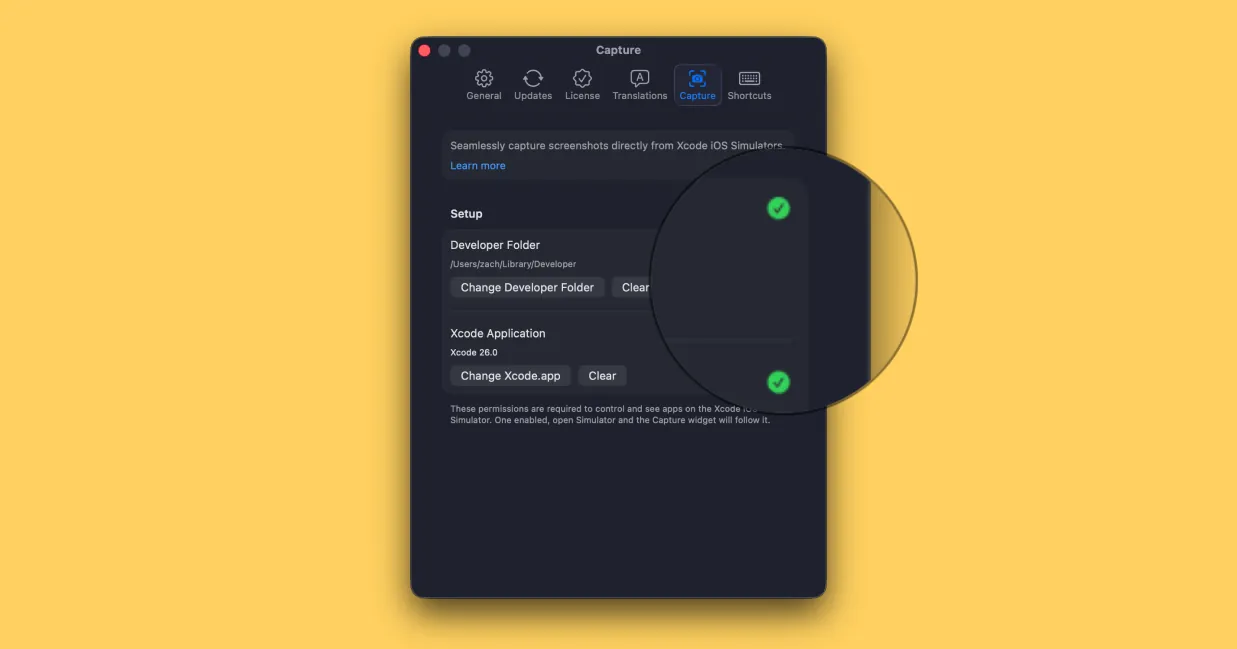
Ensure the Capture tool is properly set up
Step 2 — Use ButterKit Capture Tool with Xcode
With both ButterKit and Xcode Simulator open, the Capture Tool will appear and follow around the active Simulator window. Simply press “Capture” to import that screenshot into ButterKit. Tip: if you’re not seeing the ButterKit Capture Tool, ensure the tool has proper permissions (Step 1). You may need to restart ButterKit for the new permissions to take effect.
Tip
For even faster captures, focus/click on the Capture tool, then use your keyboard arrowkeys to navigate to the selected artboard.
Step 3 - Swap localizations in one click
ButterKit makes it easy to change Xcode localizations for your app and capture it in seconds. Simply press “Available Localizations” in the ButterKit Capture tool and select one.
These localizations are automatically pulled from your string catalog in your Xcode project, so if you don’t see any, you’ll need to add more localizations to your string catalog or migrate from the legacy .strings format to the new Strings Catalog pattern.
Voila! It’s that easy.
ButterKit does the heavy lifting for you, capturing directly from Xcode Simulator, importing and optimizing the screenshot, framing it into a realistic 3D device, and formatting your artboard ready for export to the App Store. Share your screenshots and app launch on the ButterKit Discord or subreddit for feedback and support from fellow builders/designers/devs.
Not seeing the Capture Tool?
Please note that the Capture Tool automatically hides when Simulator isn’t active/focused. If you have a focused Simulator window and you’re still not seeing it, try these steps.
1. Ensure the correct Developer folder is selected in Settings > Capture Tool
Some users have run into issues (e.g. missing localizations or the tool not appearing) if the incorrect folder is selected. Generally, it looks like this:
/Users/yourname/Library/Developer2. Run the Capture Tool Diagnostics in ButterKit Settings
ButterKit has a built-in diagnostics feature to help find any issues. Open up ButterKit settings > Capture and run the diagnostics. Any obvious issues will by highlighted by the system.
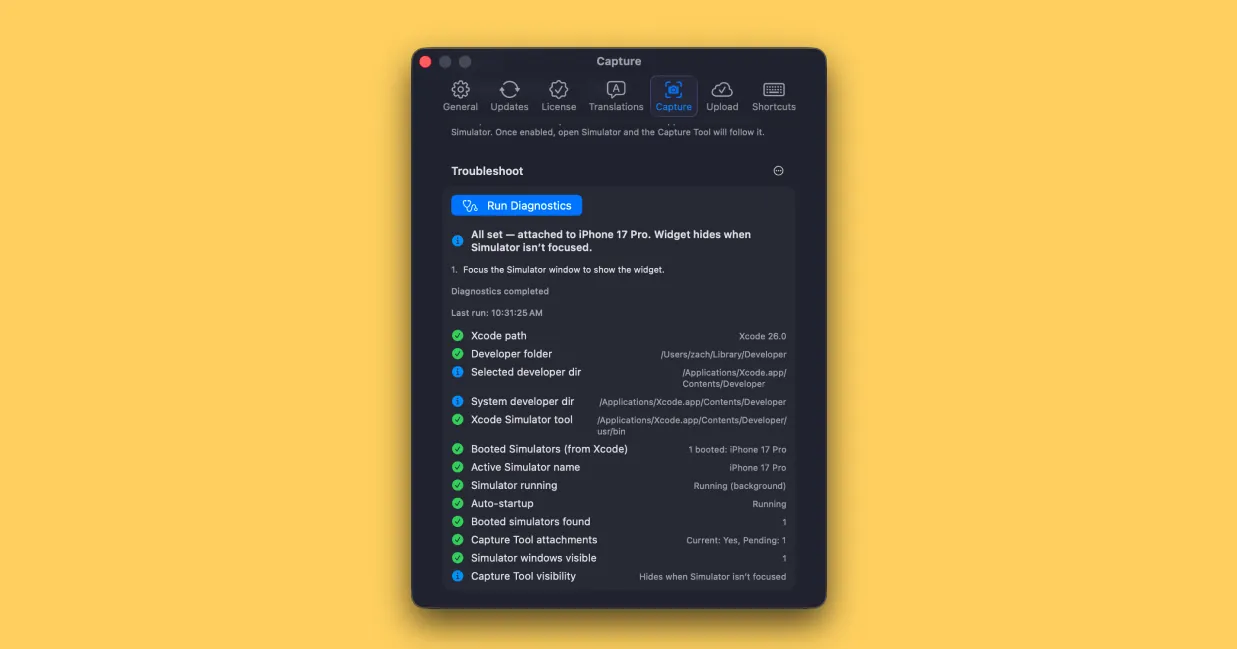
ButterKit's built-in Capture Tool Diagnostics can provide more detail if there's an issue
3. Check Xcode Config in Terminal
In some situations, the ButterKit Capture Tool may get confused if there are multiple versions of Xcode installed (or were recently). To quickly troubleshoot, open up Terminal. We can make sure Xcode is configured properly by running these commands:
xcode-select -p
xcodebuild -version
which xcrun && xcrun --version
What these commands check:
xcode-select -p— Prints the path to the active Xcode developer directory that macOS is currently using. This should point to your primary Xcode installation (e.g.,/Applications/Xcode.app/Contents/Developer). If this points to an old or beta version of Xcode, you’ll need to switch it usingsudo xcode-select --switch /path/to/Xcode.app.xcodebuild -version— Verifies that the Xcode command-line tools are accessible and displays the version. This confirms the build system can be invoked correctly. If this command fails or shows an unexpected version, it indicates a configuration mismatch.which xcrun && xcrun --version— First locates thexcrunutility (should be at/usr/bin/xcrun), then verifies it can execute.xcrunis Apple’s command-line tool proxy that locates and invokes developer tools. Ifxcrunisn’t found or fails, ButterKit won’t be able to detect or control Simulator instances.
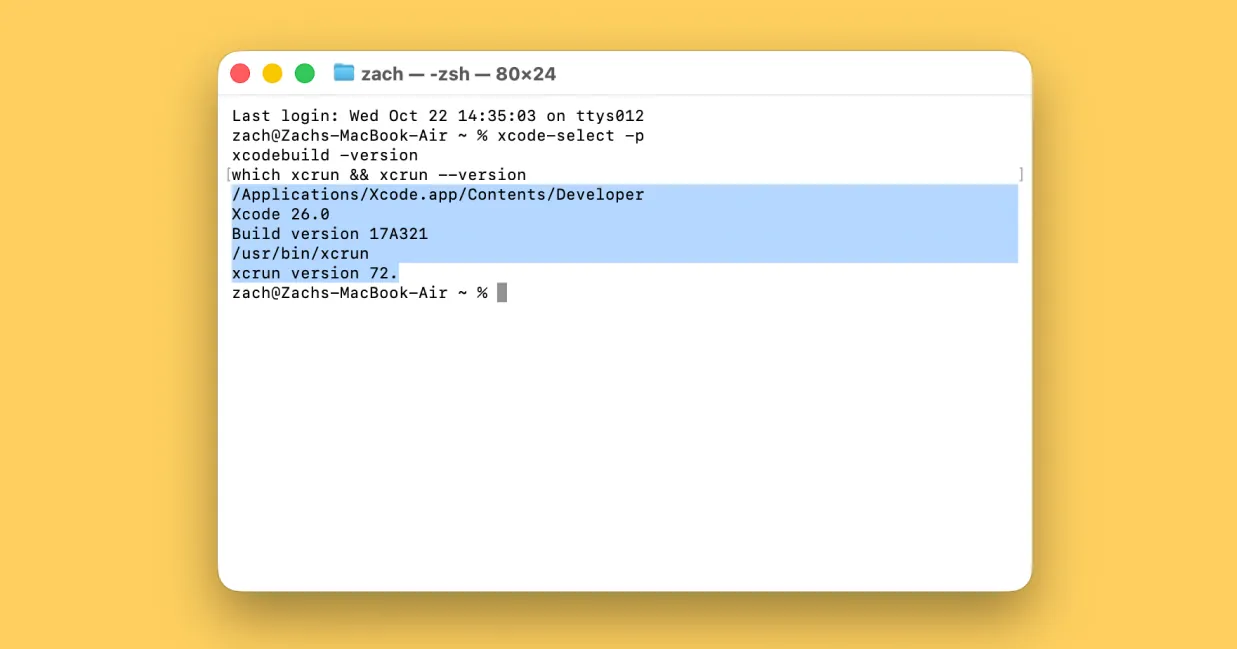
You should see something like the above returned in Terminal. All three commands should execute successfully and point to your desired Xcode installation. If they fail or show inconsistent paths, you may have multiple versions of Xcode installed causing a conflict. Consider uninstalling any unused versions.
After running the Terminal commands, restart Xcode and ButterKit. If you’ve completed the above and are still having issues, please reach out to [email protected] and include screenshots and any details you can.
FAQ
Where are images stored when captured with the Capture Tool?
Images will be bundled with the .butterkit file. You can find them by right clicking on your saved .butterkit file > Show Package Contents > assets folder. If images are missing, make sure your project was saved recently.
Quick Help
- Need more help? Browse the Documentation
- Check out our Templates & Add-ons
- Join us on Discord for quick help
- Any other questions? Get in touch