Link image folder (e.g. fastlane)
If you have a folder of your PNG/JPG screenshot images ready-to-go (e.g. from an automation tool like Fastlane), ButterKit can automatically import all screenshots for you, optionally organized by localization – and keep things updated as you change the images. This can save a lot of time, especially if you’re localizing to many languages.
1. Link a Folder
- View the Project Settings inspector by de-selecting any artboards
- Click “Link screenshots folder…”
- Choose your folder
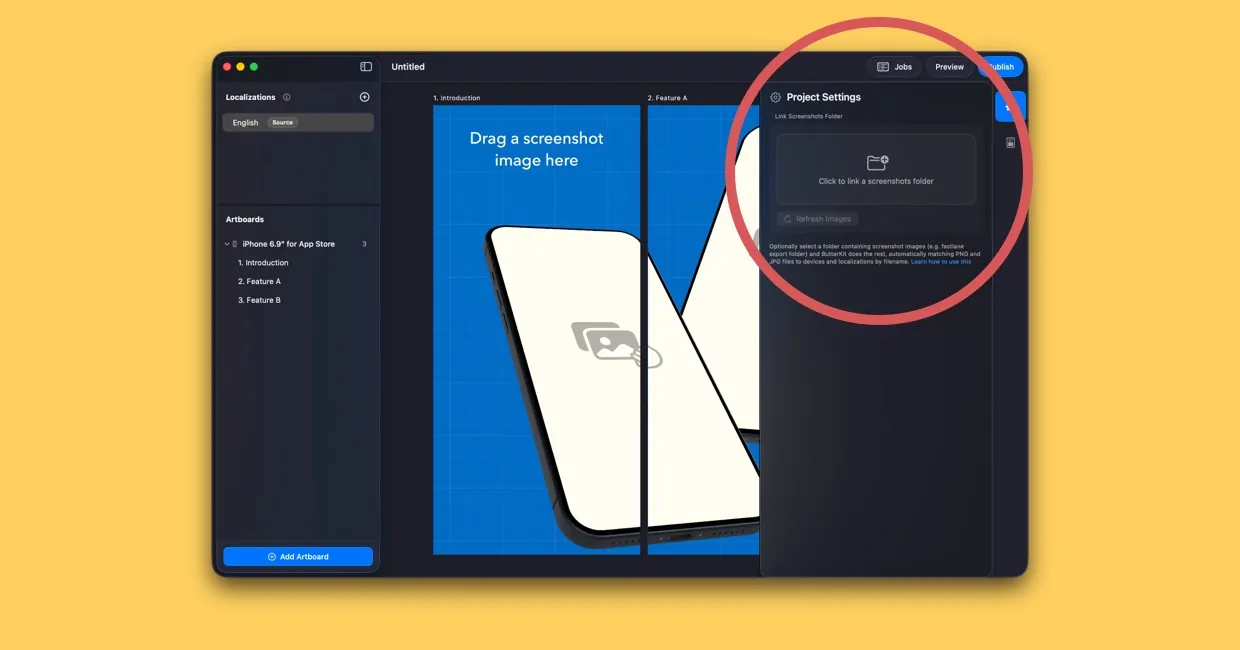
De-select all artboards and notice the Project Settings Inspector on the right
2. Supported Folder Structures
For best results, organize screenshots in any of these ways:
Flat root — Place images directly inside the linked folder:
- Settings-01.png
- FeatureA-02.png
- Exciting-03.png
Locale folders (recommended) — Organize by language:
- Settings-01.png
- FeatureA-02.png
- Settings-01.png
- FeatureA-02.png
Locale → Device folders (most powerful) — Organize by language, then device:
- Settings-01.png
- FeatureA-02.png
- Settings-01.png
- FeatureA-02.png
Device folders only: Skip the locale wrapper and place device folders at the top level. Images are applied to the active language. You can also link a device-named folder directly:
- Settings-01.png
- FeatureA-02.png
Notes:
- Locale folders accept BCP‑47 codes and common synonyms. Using BCP‑47 is recommended for predictability.
- Device folder names are not case sensitive, and spaces and hyphens are interchangeable. “iPhone 17 Pro Max”, “iphone 17 pro max”, and “iPhone‑17‑Pro‑Max” all match. Keep the words separated, though. A run-together name like “iphone17promax” will not match.
Device folder names
Name each device folder after the device as it appears in ButterKit’s device list. These are the names to use:
| Device in ButterKit | Folder name |
|---|---|
| iPhone 17 Pro Max | iPhone 17 Pro Max |
| iPhone 15 Pro Max | iPhone 15 Pro Max |
| iPad Pro 12.9″ | iPad Pro 12.9 |
| iPad Pro 11″ | iPad Pro 11 |
| MacBook Pro 16″ | MacBook Pro 16 |
| Pixel 10 Pro | Pixel 10 Pro |
| Apple Watch Ultra | Apple Watch Ultra |
| Apple Watch Series 11 | Apple Watch Series 11 |
| Generic Device | Generic Device |
A folder named just “iPad” applies its images to every iPad model in the project, which is the simplest option when a project uses one iPad type. The same shortcut works for other device families, for example “iPhone”.
Folders are matched against the devices placed on your artboards. If a device is not in your project, its folder is skipped and listed under “Unmatched device folders” in the scan summary.
3. File Naming and Sorting
Images are applied to 3D devices in a predictable sequence per group (device or locale):
- Trailing number at end of filename (preferred)
…-01.png,…-02.png,…-10.png
- If no trailing number, a leading number at the start
01 … .png
- Otherwise, natural (localized) filename order
Recommendations:
- End filenames with a zero‑padded index:
-01,-02,-03 - Keep the index immediately before the extension
Example sequence (applied in this order):
iPhone 15 Pro Max-Calendar-01.pngiPhone 15 Pro Max-DashboardLight-02.pngiPhone 15 Pro Max-SubscriptionList-03.pngiPhone 15 Pro Max-SubscriptionDetailShares-04.pngiPhone 15 Pro Max-SubscriptionDetailPriceHistory-05.pngiPhone 15 Pro Max-Calendar-06.png
4. Multiple Devices on One Artboard
If an artboard contains multiple models of the same device, all of them are targeted. Files are applied sequentially to model 1, then model 2, then the next artboard, and so on.
5. How Matching Works
- If locale folders exist:
- Exact match to the locale’s BCP‑47 code (e.g.,
fr-CA), else family fallback (e.g., any French tofr-*), else base language when appropriate.
- Exact match to the locale’s BCP‑47 code (e.g.,
- If no locale folders but the root has images:
- Applies to the active language; if none, to the project’s base language; else to base artboards.
- For device subfolders:
- Files go to artboards containing that device; if none match, images are applied sequentially across the group.
Recommended BCP-47 Localization Codes
ButterKit supports the same 50 locales as App Store Connect. Use these as your locale folder names:
- ar-SA — Arabic (Saudi Arabia)
- bn — Bangla
- ca — Catalan
- zh-Hans — Chinese (Simplified)
- zh-Hant — Chinese (Traditional)
- hr — Croatian
- cs — Czech
- da — Danish
- nl-NL — Dutch (Netherlands)
- en-AU — English (Australia)
- en-CA — English (Canada)
- en-GB — English (U.K.)
- en-US — English (U.S.)
- fi — Finnish
- fr-FR — French (France)
- fr-CA — French (Canada)
- de-DE — German (Germany)
- el — Greek
- gu — Gujarati
- he — Hebrew
- hi — Hindi
- hu — Hungarian
- id — Indonesian
- it — Italian
- ja — Japanese
- kn — Kannada
- ko — Korean
- ml — Malayalam
- mr — Marathi
- ms — Malay
- no — Norwegian
- or — Odia
- pa — Punjabi
- pl — Polish
- pt-BR — Portuguese (Brazil)
- pt-PT — Portuguese (Portugal)
- ro — Romanian
- ru — Russian
- sk — Slovak
- sl — Slovenian
- es-MX — Spanish (Mexico)
- es-ES — Spanish (Spain)
- sv — Swedish
- ta — Tamil
- te — Telugu
- th — Thai
- tr — Turkish
- uk — Ukrainian
- ur — Urdu
- vi — Vietnamese
Examples:
screenshots/en-US/iPhone 17 Pro Max/MyScreen-01.pngscreenshots/pt-BR/MyScreen-01.png
Troubleshooting
- No screenshots applied: Make sure the files are PNG or JPG and that ButterKit has permission to access the linked folder.
- Wrong order: Add a zero-padded trailing index to each filename (
-01,-02,-03). Without zero-padding,-2sorts after-10. - Missing on a specific device: The device subfolder name must match the device name in your project. Open the artboard inspector to confirm the exact name (e.g. “Apple Watch Ultra”), then rename the subfolder to match. Spacing and case are flexible, but the full device name must be present.
- Extra images: Files beyond the number of device slots are ignored. Fewer files means some slots keep their existing screenshot.
Quick Help
- Need more help? Browse the Documentation
- Check out our Templates & Add-ons
- Join us on Discord for quick help
- Any other questions? Get in touch